Skip to content

The Machine · Control

Bridge

Design stage

Updated 2026-10-20

The one board that transmits: an ESP32-S3 in a small printed box, with an antenna up high, a stop button, an activate button and a status light. Every controller is built on it.

Loading the model

Drag to turn · scroll to zoom

Printed

3DThe bridge box. Printed parts are drawn in orange; everything else is bought. Play lifts the lid.

Overview

Cost, roughly
About $50
Printing
About 12 hours
Building
An evening
Difficulty
Moderate
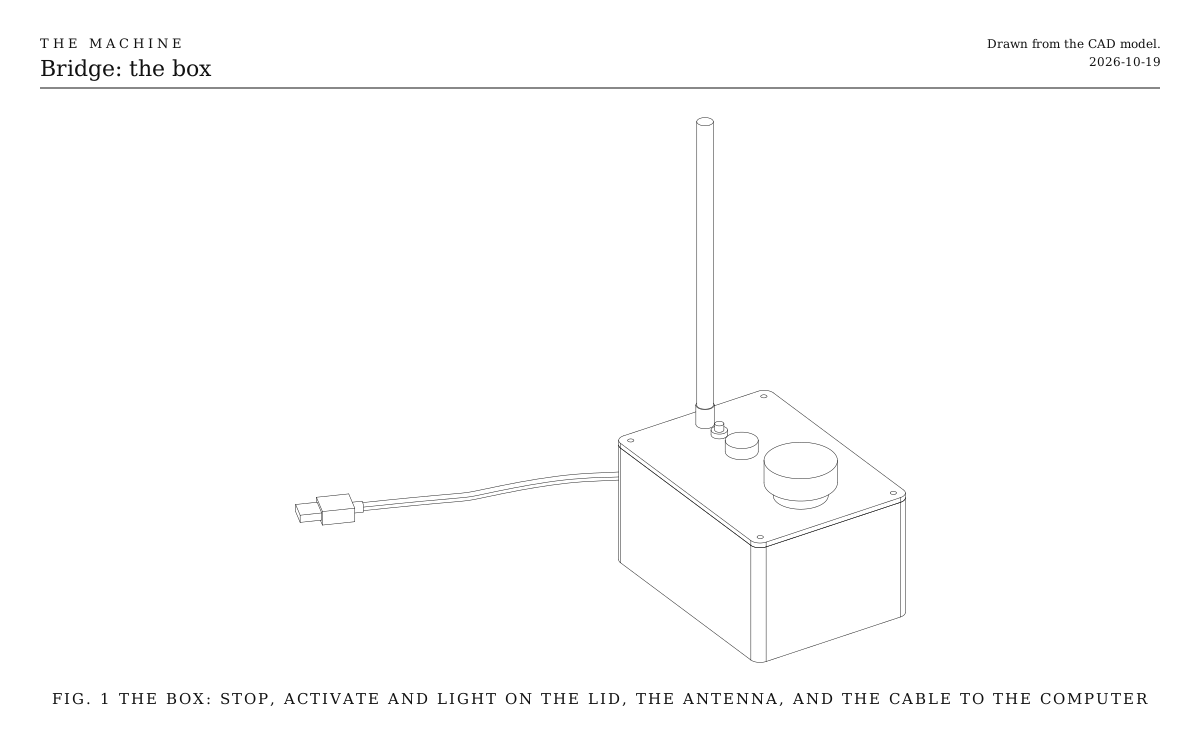
The bridge box. The tub and its lid, with the stop button, activate button, light and antenna, and the USB cable to the computer. Drawn from the CAD model.
Fig. 1The bridge box. The tub and its lid, with the stop button, activate button, light and antenna, and the USB cable to the computer. Drawn from the CAD model.

How it works

More than a USB cable, though not much more. The bridge keeps the clock itself, holds what every element should be doing, and sends a message every 20 ms, so nothing driving it can smear the timing. It’s the one part of the Machine that transmits, and every controller is built on it. How the signal itself works is on the system page.

How the bridge is wiredAn ESP32-S3 board sits in a small box. A USB cable from the show computer gives it power and data. A short lead takes its antenna socket through the box wall to an antenna mounted high. A latching stop button is wired through its normally closed contact between GPIO 4 and ground, and an activate button between GPIO 5 and ground. A colour status light is wired to GPIO 6, 7 and 15 through a 220 ohm resistor each, with its common leg to ground.Computerruns the showUSB: power and dataBox2.4 GHz antenna, up highshort lead to the box wallESP32-S3GPIO 4GPIO 5GNDGPIO 6GPIO 7GPIO 15220 Ω eachStatus lightred, green, blueStopnormally closedActivatehold one secondground

How the bridge fits together: the board in its box, the cable to whatever drives it, the antenna through the wall, the two buttons and the light.

  • The USB cable brings power and, when a computer drives the bridge, its instructions: “from beat 257, number 4 plays its second rhythm”. If the computer stops sending, the bridge keeps the last rhythms looping and blinks amber. Unplugged, the bridge goes dark, and every element hears silence and goes quiet within two seconds.
  • The antenna goes as high as you can, above the audience’s heads. For height, raise the whole box: two holes in its floor bolt it to a 20 mm extrusion upright, and a longer USB cable reaches it, with an active extension past 5 meters.
  • The stop button is wired through its normally closed contact, so pressing it, or a cut or unplugged wire, reads as stop. It latches: it stays down until twisted.
  • The activate button is held for a second, and only with the stop button up. Nothing else lets the elements move again after a stop.
  • The status light has the same colours as the elements: solid red while stopped, dim green while sending, a white flick on every beat, and a slow amber blink when the computer has gone quiet.
  • It always starts stopped. After switching on, it sends stop until someone holds activate.

Parts

Ingredients

KindPartQtyEachFile
PrintedBox tub: floor, walls, cable slot and zip-tie slotsYour choice: see The box1·STL
PrintedBox lid: holes for the stop, activate, light and antennaYour choice: see The box1·STL
BoughtESP32-S3 development board with an external antenna socketNative USB, so a computer can see it as a MIDI device. Boards built on the WROOM-1U module have the socket.1$15.00
Boughtu.FL to SMA lead, short, with a nut for the box wallYour choice: see The antenna1$3.00
Bought2.4 GHz antenna with an SMA plugYour choice: see The antenna1$5.00
BoughtEmergency-stop button, latching, with a normally closed contactPressed, it stays down until twisted.1$8.00
BoughtPush button, momentaryActivate.1$0.50
BoughtRGB LED, common cathode, with a panel holder1$1.00
Bought220 Ω resistors3$0.05
BoughtScrew-terminal expansion board for the ESP32-S3Optional, and easier than soldering: the board plugs in and every pin becomes a screw terminal.1$4.00
BoughtM3 heat-set inserts4$0.20
BoughtM3 x 10 screwsHold the lid on.4$0.10
BoughtZip tie and a strip of foam tapeHold the board to the floor.1$1.00
BoughtM5 x 10 screws and T-nuts for 20 mm extrusionOptional, to bolt the box to an extrusion upright and lift the antenna.2$0.30
BoughtUSB-C cable, rated for dataLong enough to reach the desk. Charge-only cables look the same and carry no data.1$5.00
BoughtHookup wire and heat-shrink1$3.00
BoughtStick-on rubber feetFor a box that sits on a desk.4$0.25
Total$48.45

Tools

  • A computer with USB, and the Arduino environment for ESP32
  • 3D printer, PETG
  • Soldering iron
  • Multimeter

Choices

Decisions that are yours to make. Where we started is the version in the 3D model and the ingredients: a starting point, not the right answer.

The box

What holds the board, the buttons and the light?

The printed boxWhere we started

Two prints, about 12 hours, made for these parts. The cable slot and zip-tie slots mean the board can sit anywhere inside.

A bought project box

An ABS box about 150 x 100 x 75 mm, drilled for the buttons, light, antenna and cable. No printing, but every hole is yours to place, and the board needs standoffs or tape.

Inside a console

The board, buttons and light go into a bigger console that also holds a controller's own buttons, as the Button and the Loop Grid do. One box fewer, and the stop sits beside the controls.

The antenna

How does the signal leave the box?

An antenna on the lidWhere we started

A bought 2.4 GHz antenna on a short lead, standing straight up. The reach the Machine was designed around.

An antenna up a mast

The same antenna on a lead of up to a meter, clamped high on an extrusion upright while the box stays low. Thin antenna cable loses signal, so the lead stays short and good.

The board's own antenna

A board with a printed antenna and no socket, sealed in the box. Cheaper and simpler, with less reach, and a crowd between it and the elements costs more messages.

The stop button

Where does the stop live?

On the lidWhere we started

A latching emergency stop at the top of the box, the first thing a hand finds.

On a cable, in the hand

The same button in a pendant housing on a few meters of cable, so whoever runs the show holds it while the box sits up high. Two more wires through the cable slot.

Both

Two buttons wired one after the other through their normally closed contacts, so either one stops everything.

Wherever it goes, the stop latches and uses its normally closed contact, so a cut wire reads as stop.

Print

Material
PETG
Layers
0.2 mm
Walls
6 lines, the whole wall
Infill
20%

Holes print slightly small, and buttons vary. Measure yours before printing, and change the hole sizes at the top of the box's script if they differ. The script also has a switch that adds a third hole for a Go button.

The printed parts

  • Box tub: floor, walls, cable slot and zip-tie slots

    Which way up
    Upright, open side up
    Supports
    None
    Time
    About 9 hours
    STL ↓
  • Box lid: holes for the stop, activate, light and antenna

    Which way up
    Top face down, so the lip is on top
    Supports
    None
    Time
    About 3 hours
    STL ↓

Assembly

  1. 1

    Print the tub upright and the lid top face down. Neither needs supports.

    CheckYour stop button, activate button, light holder and antenna connector each fit their hole in the lid.

  2. 2

    Melt the four heat-set inserts into the tops of the corner posts with a soldering iron.

  3. 3

    Lay the board on a strip of foam tape between the two slots in the floor, on its expansion board if you have one, and strap it down with a zip tie through the slots.

    TrickyA bare board with its pins pointing down can't lie flat. Plug it into the expansion board, or solder its wires to the tops of the pins.

  4. 4

    Pass the USB cable in through the slot at the end and plug it into the board.

    TrickyMany ESP32-S3 boards have two USB ports. Use the one marked USB, which is the chip's own; the one marked UART or COM can't appear as a MIDI device.

  5. 5

    Fit the stop button, the activate button and the light holder to the lid, and bolt the antenna connector through its hole.

  6. 6

    Press the antenna lead's small end onto the board's antenna socket.

    TrickyThe socket is tiny and wears out after a few dozen connections. Press it on straight, once, and leave it. Keep an antenna on whenever the board is powered.

  7. 7

    Wire the buttons and the light as in the Wiring tab.

    TrickyUse the stop button's normally closed contact, not the normally open one. Then a broken or unplugged wire reads as stop instead of quietly disabling the button.

  8. 8

    Load the bridge's firmware from the downloads, and plug the bridge into the computer by its native USB port.

    CheckThe light is solid red: the bridge always starts stopped. Its console prints that it has started.

  9. 9

    Screw the lid down with the four M3 screws.

  10. 10

    Screw on the antenna, set the box where it can see over the audience, and hold activate for a second.

    CheckThe light turns dim green and flicks white on every beat.

Wiring

The board runs from its USB cable, so nothing here carries more than a few milliamps. The pin numbers are where we started: any free pins work except 0, 3, 45 and 46, which set how the board starts up, and 19 and 20, which are its USB.

Wiring · Bridge
PowerSignalGround, all joinedPins drawn faint are left empty.

Wire list

  1. Show computer, or a USB power supply, USB

    ESP32-S3 board, USB

    PowerUSB-C cable, rated for data

    Power, and the computer's instructions. Plug into the port marked USB.

  2. ESP32-S3 board, Antenna

    Antenna, through the box wall, SMA

    SignalThe u.FL to SMA lead

    Keep it short; thin antenna cable loses a lot at this frequency.

  3. ESP32-S3 board, GPIO 4

    Stop button, normally closed contact, 11

    SignalAny hookup wire

    Through the normally closed contact, so pressing the button, or a broken wire, reads as stop.

  4. ESP32-S3 board, GND

    Stop button, normally closed contact, 12

    GroundAny hookup wire

  5. ESP32-S3 board, GPIO 5

    Activate button, 1

    SignalAny hookup wire

    Both buttons use the board's own pull-up resistors, so they need nothing else.

  6. ESP32-S3 board, GND

    Activate button, 2

    GroundAny hookup wire

  7. ESP32-S3 board, GPIO 6

    Resistor, 220 Ω, 1

    SignalAny hookup wire

  8. Resistor, 220 Ω, 2

    Status light, RGB LED, R

    SignalThe resistor's own leg

  9. ESP32-S3 board, GPIO 7

    Resistor, 220 Ω, 1

    SignalAny hookup wire

  10. Resistor, 220 Ω, 2

    Status light, RGB LED, G

    SignalThe resistor's own leg

  11. ESP32-S3 board, GPIO 15

    Resistor, 220 Ω, 1

    SignalAny hookup wire

  12. Resistor, 220 Ω, 2

    Status light, RGB LED, B

    SignalThe resistor's own leg

  13. ESP32-S3 board, GND

    Status light, RGB LED, Common

    GroundAny hookup wire

    The LED's longest leg.

Mounting

The bridge sits where its antenna can see over everyone's heads and its stop button is within an arm's reach of whoever runs the show. Its box takes two M5 screws into a 20 mm extrusion upright, or sits on a desk.

The box
Two M5 x 10 screws through the holes in its floor, 60 mm apart, into T-nuts in a 20 mm extrusion upright. On a desk instead, it stands on four rubber feet.
The board
On a strip of foam tape on the floor, strapped down with one zip tie through the two slots, so it can't slide when the box is carried.
The antenna
Screwed onto its connector in the lid, pointing straight up.
The cable
In through the slot in the end wall. A zip tie round the cable just inside the wall keeps a tug from pulling the plug out of the board.
The stop button
In the lid, at the top of the box, clear of the antenna, so a hand reaches it without catching anything.

Where it sits

Desk, upright or console?

On the operator's deskWhere we started

Everything within reach, and the cable is short. The antenna is only as high as the desk, so a standing audience between it and the stage costs messages.

High on an upright

Bolted to a 20 mm extrusion upright two meters or more up, above the heads. The best reach, but the stop is out of reach unless it's on a cable in the hand.

In a console

Inside whichever controller drives it, on the operator's desk or on show. The console decides how it mounts.

Tuning

Tuning

The antenna
Higher is better. Every head between the antenna and an element costs some messages.
The channel
Pick the quietest one at each venue. Elements find it on their own by listening to each channel in turn.

Variations

A hand-held stop
One more ESP32 with a button and a battery, sending only stop. Any number of them can stop the show, and none can restart it, so a stop whose battery dies mid-press restarts nothing.
A listening post
A spare listener plugged into the show computer, counting the messages it misses. Elements never report radio trouble, so this is how the person running the show sees it.
Signed messages
A short signature on every message, with a key shared by every element, so only this transmitter can make anything play. Stop is accepted from anyone either way.

Build log

  1. The Bridge follows sudden tempo jumps

    I played a song that jumps from 96 to 132, 72 and 150 beats a minute at bar lines into the Bridge from the Mac, with the listener on the other board printing when it pulsed each note and passed each sixteenth of the beat.

    • With the old laptop link the notes stayed on time, but the beat ran up to about 50 ms off for a beat after each jump, as the computer tests had found.
    • With the new one, sent the way the sequencer and Live send MIDI, timed a little ahead, every note landed within 0.22 ms of where it should and the beat within 0.16 ms, right through the jumps. The Bridge’s status said it had followed exactly three sudden changes.
    • My first sending script handed each message over the moment it was due instead of timing it ahead, and that alone made the clock’s ticks arrive up to 6 ms uneven. The new link took dozens of those uneven gaps for changes of tempo. Now it weighs each gap against how uneven the clock usually is, and with that script it followed the real jumps, took only three uneven gaps for changes, and kept the beat within about 2 ms.
    • The Bridge now stamps MIDI the moment it arrives over USB rather than when its loop gets to it. That made no difference here, since the loop was keeping up.
  2. First radio test, on two bare boards

    I put two bare ESP32-S3 boards on the desk, both on USB from the laptop with antennas fitted. One ran the Bridge and the other a listener, and a paperclip stood in for the stop button.

    • The listener found the Bridge and followed its beat, hearing 1,227 messages in a row without losing one.
    • A tempo change from 120 to 90 took effect on both boards at the next bar.
    • Pulling the paperclip stopped both at once. Putting it back did nothing until I activated the Bridge again, which is how it should work.
    • I unplugged the listener and plugged it back in, and it was back on the beat within a moment.
    • After the Bridge restarted, the listener stayed silent for as long as the Bridge had been running before. That’s fixed, and it now picks the beat back up straight away.
    • At a few inches apart, the listener sometimes settled on a neighbouring channel and heard only scraps. Every message now names the Bridge’s channel, so a listener on the wrong one moves over.
    • Plugging a laptop into the Bridge restarts it. It comes back stopped, which is safe but no good mid-show. That waits for the laptop link.
  3. The Bridge meets Ableton Live

    I took the Bridge to the Mac and drove it from Ableton Live, with the listener on the other board following over the radio.

    • The first time I plugged it in, the Mac asked whether to allow the new accessory. Until I allowed it, Live didn’t see the Bridge at all.
    • With Sync on, Live’s tempo, play and stop drove the Bridge, and the listener followed: on Live’s beats a second later, through a tempo change, and resting when I stopped.
    • A MIDI clip on channel 1 made the listener flick on every note.
    • Live’s Track Delay goes from −1000 to +1000 ms, but its MIDI Clock Sync Delay, which moves the beat, only goes from −300 to +300 ms. So Live can’t send the beat a full second early to cancel the Bridge’s lookahead. For a show I’ll keep the second, since the elements need it to get ready, and delay Live’s own audio tracks by +1000 ms instead, so everything the audience hears lines up.
    • Along the way the Bridge’s USB name became THEMACHINE, and its release button became activate. Until the real button is fitted, a wire from GPIO 5 to ground, held for a second, does the job.
  4. The USB MIDI Bridge on two bare boards, before Ableton

    I loaded the new Bridge, the one that shows up on a computer as a USB MIDI device, onto the radio test’s Bridge board, and the listener onto the other. Ableton Live runs only on the Mac, so first a short script on the Linux desktop played Live’s part: MIDI clock, start, stop, a tempo change from 120 to 90, and notes on channel 1.

    • The board showed up on the computer as a MIDI port and a console on one cable, with no driver to install.
    • When the script pressed play, the Bridge said the computer was playing and dropped its own rhythm. It read the tempo as 119.9, then 90.0 after the change, and saw the stop exactly as long after the start as the script sent it.
    • The Bridge took 72 notes without dropping one, and the listener pulsed for every one. It lost no radio messages through any of it.
    • Closing the Bridge’s console and opening it again mid-piece no longer restarts it. It kept playing, kept its activation number, and never dropped off USB.
    • The old Bridge had been left plugged into the computer with nobody reading its console. In 73 minutes it had sent 2,590 messages, where it should have sent about 219,000, because waiting to print held up the signal. The new one keeps sending 50 a second either way, at the cost of the odd console line losing its end.
    • The first upload in the new USB mode, from loading mode, left the board in its loader until a tap of RST. Then I found I’d loaded each program onto the board labeled for the other, and swapping them needed no buttons at all.
    • Both times the script pressed play while the Bridge’s own rhythm was on, the listener pulsed once more than expected in the handover. With the rhythm already off, it didn’t.